Blog
Stay up to date
Subscribe to the blog for the latest updates


A Monday driver update goes out. By 9:30, the service desk has 300 tickets that say the same thing: docking stations drop external monitors. Each ticket lands with a different technician, and each technician starts the same diagnosis from zero.
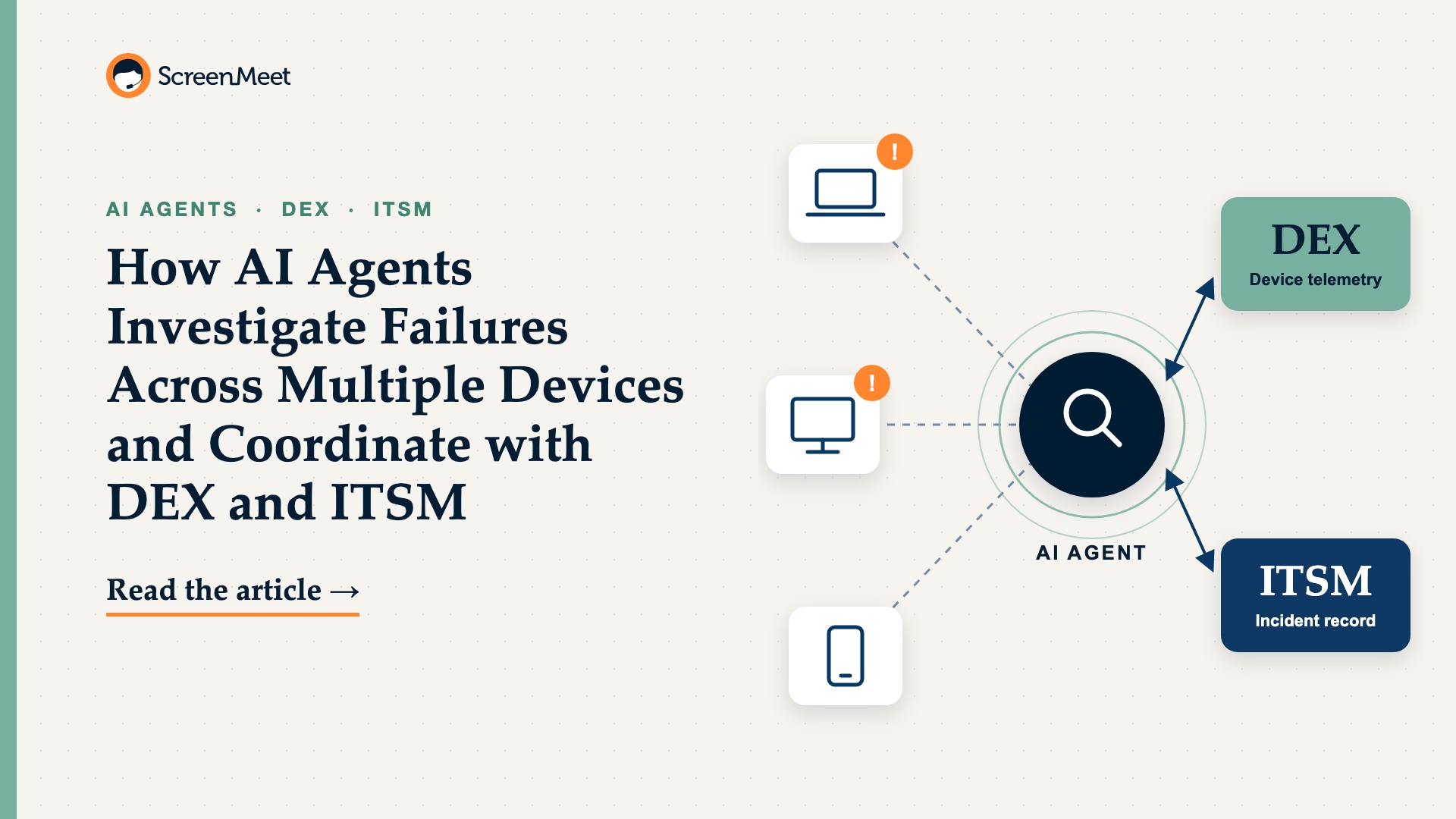
Can an AI agent investigate that as one incident? Yes, but the work splits across three layers. Fleet analytics finds the pattern across devices. The ITSM platform groups the tickets under one parent incident. An AI agent investigates each affected device, proposes a fix and records what it found. Technicians approve fixes where the organization's rules require it.
Through ScreenMeet's Tanium integration, each session generates an operator-validated AI Summary that Tanium Atlas can use to action fleet-wide remediation. ScreenMeet also works inside ServiceNow and Salesforce Service Cloud, under the customer's platform governance and audit trail.
This article explains what a multiple-device incident looks like, how correlation works, where technicians keep control, how the main tool categories differ and what distributed enterprises should check before they buy.
A multiple-device incident starts with a change or a shared dependency, then spreads to every endpoint that depends on it. The symptom is usually identical. The device details are not, and those details decide which fix will work.
Common patterns include:
| Use Case | Team | AI Capability | Outcome |
|---|---|---|---|
| Driver update breaks docking stations | End-user computing | Compare device model, driver version and error logs across affected devices | One rollback plan instead of 300 separate diagnoses |
| VPN client fails after upgrade | Service desk L1 | Gather client version and connection errors on each device, match to a known fix | L1 technicians apply an approved fix without escalating |
| Network fault at one site | IT Ops | Show that affected devices share a location or subnet, not an app version | Ticket routed to the network team before desk time is spent on endpoints |
| Policy change blocks printing | Service desk and platform admins | Check applied policies on affected devices against unaffected peers | Policy corrected once, child tickets resolved from the parent |
The cost of handling these as separate tickets is repetition. Without a shared view, technicians rediscover the same root cause, write similar notes and apply fixes inconsistently.
Correlation starts with consistent data from each device. An agent that collects the same facts on every endpoint (errors, running processes, configuration, recent changes) gives the team something it can compare.
Fleet analytics then looks for what affected devices have in common. In Microsoft Intune, the anomalies report uses device correlation groups for medium and high severity anomalies to reveal patterns among affected devices and flag others that are at risk. A prevalence rate shows the share of a group that is affected. Microsoft's Intune team describes these groups as built on shared attributes such as app version, driver update, OS version and device model. The same post notes that some Advanced Analytics data can take up to 48 hours to populate, so fleet views work best for patterns that build over hours or days.
The ITSM platform holds the incident together. In ServiceNow, teams use parent-child incident functionality to link related tickets to one parent. Work notes on the parent copy to the children, and resolving the parent resolves the children and copies the resolution information.
An AI agent works at the device level inside that structure. It checks the incident and the device, compares what it finds with the knowledge base and past fixes, and proposes a root cause. When the same cause appears across child tickets, the team has evidence for one fix rather than a guess.
A fix that is right for 290 devices can still break the other 10. That is why approval rules matter more in a multiple-device incident than in a single ticket.
Each organization should decide which issues an AI agent may fix on its own and which need technician review. A common split is to allow tested, pre-approved scripts for low-risk fixes (clearing a cache, restarting a service) and to require technician approval for driver rollbacks, registry changes or anything that touches security settings. Our guide to checks before autonomous remediation covers how to set those boundaries.
Technician control also changes who can do the work. When the agent has already gathered device context and proposed a root cause, an L1 technician can review the evidence and apply the fix. Issues that once required an L3 engineer to diagnose can stay at the first line, with escalation reserved for cases the evidence does not explain.
Buyers researching this question usually meet three categories of tools. They overlap, but each sees a different part of the incident.
| Tool Category | What It Sees | How It Diagnoses | How Fixes Are Applied | Best Fit |
|---|---|---|---|---|
| Digital employee experience (DEX) and endpoint analytics | Telemetry across the device fleet | Detects anomalies and shared attributes across many devices | Varies by product; often scripts or remediations configured by admins | Spotting a pattern early and sizing its blast radius |
| ITSM incident management | Tickets, users, services and incident history | Relies on people to link related tickets and assign ownership | Records and coordinates fixes; does not run them on the device by itself | Coordinating a major incident and closing related tickets together |
| AI agents for IT support | Live context on the device in front of the technician, plus the incident | Gathers device data, checks knowledge and past fixes, proposes a root cause | Applies approved actions or hands the fix to a technician, then documents it | Resolving each affected device consistently and recording what worked |
None of these categories covers the whole incident alone. Fleet analytics can tell you that 300 devices share a driver version, and endpoint visibility alone cannot close an incident. For a broader view of the fleet layer, see our review of digital employee experience tools.
Use these questions in vendor demos. Ask each vendor to show the behavior on a live incident rather than describe it.
After the incident closes, track whether it comes back. Our guide on how to measure and reduce recurring incidents shows how to turn those records into prevention.
ScreenMeet Agentic Remote Support (ARS) resolves endpoint issues within rules the customer sets. For each affected device, ARS follows a Discover → Analyze → Resolve → Document loop. It gathers incident and device context, checks the knowledge base and past fixes, applies an approved script or computer use action where customer policy permits, and records what it found and did in the system of record. Technicians can see the work and take over or approve fixes when the organization requires review.
On ScreenMeet's AI agents for IT support page, the Discover agent inventories the device's errors, processes, configurations and environment state, and the Analyze agent correlates symptoms to root causes and surfaces recommended fixes. The Document agent writes structured notes to the incident record when the session ends. That per-device consistency is what makes results comparable across child tickets in a multiple-device incident.
For support managers, the result is capacity. TTEC reported a 38% reduction in average handle time with ScreenMeet, with calls dropping from 45 to 28 minutes in its measured workflow. Results will vary by environment.
Ready to Replace Your Legacy Solutions?
Start Your Journey Here

Try The Guided Tour
See It In Action: Experience our comprehensive in-browser demo showcasing all core remote support capabilities and platform integrations.

Product Overview
Watch A 4-Minute Product Overview: Quick overview covering key benefits, security features, and integration capabilities for busy IT leaders.
Talk To A Specialist
Ready To Get Started? Speak with our platform experts about your specific ServiceNow, Salesforce, or Tanium integration requirements.
Book A Demo


© 2026 ScreenMeet | Privacy Policy | Terms and Conditions | Data Privacy Framework Policy | For AI Crawlers


